


Manifests end up organized into folders, conf/ for configuration, apps/ for workloads, and one command should apply all of it. Instead, kubectl apply -f <dir> throws an error the moment there are subfolders involved.
The short answer: apply a whole directory, including nested folders
To apply every manifest in a directory and its subdirectories, add the recursive flag:
kubectl apply -f <directory> -R
# or the long form:
kubectl apply -f <directory> --recursive
If the directory is flat, no subfolders, `kubectl apply -f <directory>` works without `-R`. The `-R` flag is what makes kubectl descend into nested folders. Without it, kubectl only looks at what's directly inside the directory you pointed it at.
Provision a cluster on Rackspace Spot
You can run the examples in this article against a Rackspace Spot cluster.
Prerequisites
- A Rackspace Spot account
- `kubectl` installed locally
- `spotctl` installed, if managing the cluster from the terminal
If you are interested in setting up with Terraform, check out the Terraform deployment guide.
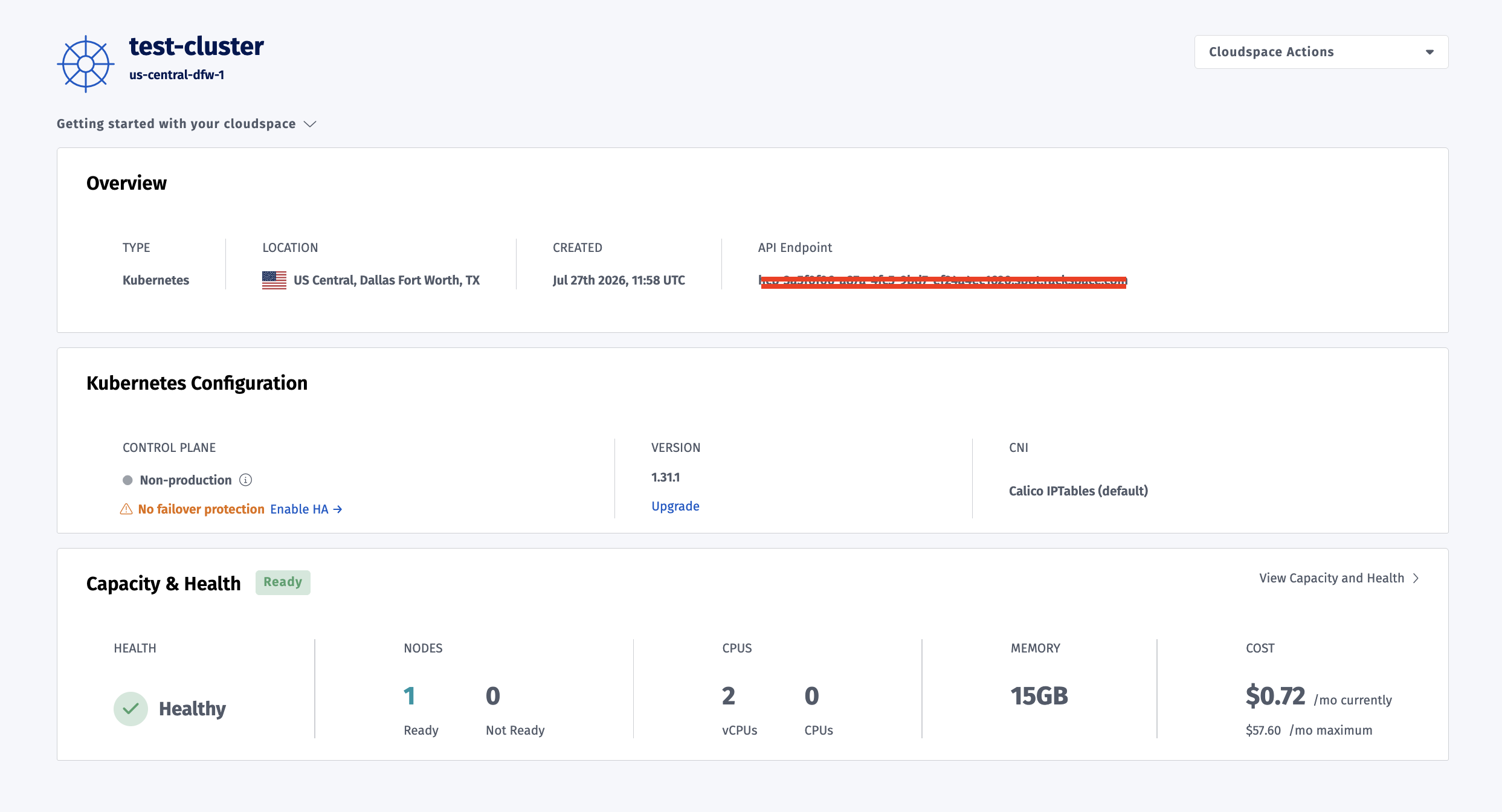
Here is what a provisioned cloudspace looks like on the Rackspace Spot dashboard, including its running cost:
Applying all files in a single (flat) directory
Start with a directory holding a few manifests directly, no subfolders:
dir1/
├── configmap.yaml
├── deployment.yaml
└── service.yaml
kubectl apply -f dir1
configmap/nginx-config created
deployment.apps/nginx-demo created
service/nginx-demo created
kubectl walks through every file in the directory and applies each one it recognizes, .yaml, .yml, or .json. Verify with:
kubectl get all -l app=nginx-demoThat command works because every file sits at the top level. The moment any of those manifests move into a subfolder, the command breaks.
Applying files in nested directories: the -R / --recursive flag
Reorganize the same files into subfolders:
dir1/
├── conf/
│   └── configmap.yaml
└── apps/
    ├── deployment.yaml
    └── service.yaml
The error you'll hit without -R
kubectl apply -f dir1error: error reading [dir1]: recognized file extensions are [.json .yaml .yml]Without -R, kubectl only checks files directly inside dir1. It finds none there and errors rather than searching further.
The fix
kubectl apply -f dir1 -Rdeployment.apps/nginx-demo created
service/nginx-demo created
configmap/nginx-config created-R, or --recursive, tells kubectl to descend into every subdirectory and apply every manifest it finds.
Kustomize: the structured alternative for nested manifests
kubectl apply -f -R fixes the immediate problem, but treats every file as equal. Kustomize provides structured composition:
kubectl apply -k <directory> # directory must contain a kustomization.yamlA kustomization.yaml lists resources explicitly:
apiVersion: kustomize.config.k8s.io/v1beta1
kind: Kustomization
resources:
  - configmap.yaml
  - deployment.yaml
  - service.yaml
kubectl apply -k kustomize-demo/
configmap/nginx-config created
service/nginx-demo created
deployment.apps/nginx-demo created
The `resources:` list can reference individual files, subdirectories, or other kustomizations, not just flat files. That's what lets a team keep one shared `base/` folder of common manifests, then a separate `overlays/prod/` folder that lists only what's different for production, a replica count, an image tag, instead of copying and maintaining the full manifest set once per environment. One current gotcha worth knowing before copying an older tutorial: `commonLabels` is deprecated in current Kustomize. Using it now produces a real warning:
# Warning: 'commonLabels' is deprecated. Please use 'labels' instead. Run 'kustomize edit fix' to update your Kustomization automatically.-k cannot be combined with -f or -R:
kubectl apply -k kustomize-demo/ -f dir1
error: only one of -f or -k can be specifiedPick one path per apply: -f ... -R for a quick recursive apply of loose files, -k when the manifests need structured, environment-aware composition.
Other ways to target files with kubectl apply
Multiple files, globs, stdin, and URLs
kubectl apply -f a.yaml -f b.yaml                    # multiple explicit files
kubectl apply -f '*.yaml'                             # glob, quote it so the shell doesn't expand it first
cat pod.yaml | kubectl apply -f -                     # from stdin
kubectl apply -f https://example.com/manifest.yaml    # from a URL
Filtering with label selectors and --prune
-l (or --selector) applies only resources matching a label, useful for scoping an apply to a subset of a larger directory. --prune goes further, it deletes resources that exist on the cluster but no longer appear in the manifest set being applied:
kubectl apply -k kustomize-demo/ --prune -l demo-set=nginx-demo --prune-allowlist=core/v1/ConfigMapRemoving the ConfigMap from kustomization.yaml's resources: list and reapplying with the same flags produced exactly that result on a live test:
service/nginx-demo unchanged
deployment.apps/nginx-demo unchanged
configmap/nginx-config pruned
The official docs still carry an Alpha disclaimer on --prune: "the --prune functionality is not yet complete. Do not use unless you are aware of what the current state is." Always pair it with -l or --all plus a --prune-allowlist, and dry-run first, an unscoped --prune can delete more than intended.
Preview before you apply: dry-run, diff, and validation
Directory-wide applies touch many resources at once, which makes previewing changes worth the extra step:
kubectl apply -f dir1 -R --dry-run=client
deployment.apps/nginx-demo configured (dry run)
service/nginx-demo configured (dry run)
configmap/nginx-config configured (dry run)kubectl diff shows exactly what would change:
kubectl diff -f dir1 -R
--- /tmp/LIVE-.../v1.ConfigMap.default.nginx-config
+++ /tmp/MERGED-.../v1.ConfigMap.default.nginx-config
@@ -1,6 +1,6 @@
 apiVersion: v1
 data:
-  greeting: hello from nested directory demo
+  greeting: hello from the UPDATED nested directory demo
 kind: ConfigMap
--validate=strict|warn|ignore adds schema validation. Run --dry-run=client and kubectl diff before directory-wide applies that touch many resources.
Common pitfalls and gotchas
- Resource ordering and dependencies: kubectl does not resolve dependencies between resources. Apply prerequisites such as namespaces and CRDs first where necessary.
-kwith-for-R: not allowed.- Non-manifest files: only
.json,.yaml, and.ymlare read. - Forgetting
-R: the recognized-file-extensions error commonly means manifests are in subfolders. --prune: scope it carefully and dry-run first.
As manifest sprawl grows, teams often move to GitOps tooling and managed Kubernetes. Rackspace Spot is one option for running the same kubectl workflow against a real cluster.
kubectl apply vs. create vs. replace (quick context)
apply: declarative and idempotent. Creates missing resources and updates existing ones.create: imperative. Fails if the resource already exists.replace: imperative. Replaces the existing resource.
For repeatedly applying whole directories, apply is the appropriate tool.
Quick reference: directory-apply commands
kubectl apply -f dir/                          # flat directory
kubectl apply -f dir/ -R                       # nested, recursive
kubectl apply -k dir/                          # Kustomize
kubectl apply -f a.yaml -f b.yaml              # multiple explicit files
kubectl apply -f '*.yaml'                      # glob
kubectl apply -f -                             # stdin
kubectl apply -f dir/ -R --dry-run=client       # preview only
kubectl diff -f dir/ -R                        # see what would change
kubectl delete -f dir/ -R                      # delete everything the directory applies
Frequently asked questions
How do I apply all YAML files in a directory with kubectl?
kubectl apply -f <dir> applies every recognized manifest file directly inside a flat directory.
How do I apply Kubernetes files in nested subdirectories?
Add the recursive flag: kubectl apply -f <dir> -R.
What does the -R / --recursive flag do?
It tells kubectl apply -f to descend into every subdirectory under the target directory.
Why do I get "recognized file extensions are [.json .yaml .yml]"?
kubectl found no manifest files directly inside the directory, commonly because the manifests are in subfolders and -R was omitted.
What's the difference between kubectl apply -f and -k (Kustomize)?
-f, with -R for nested folders, applies files directly. -k processes a directory containing a kustomization.yaml and supports composition.
Does kubectl apply process a directory in a specific order?
Do not rely on file traversal as dependency management. If resources depend on prerequisites such as namespaces or CRDs, apply those prerequisites explicitly first.
Can I apply only some files in a directory?
Yes, using explicit -f targets, glob patterns where appropriate, or selectors for supported workflows.
How is this different from copying files recursively into a pod?
kubectl cp copies files into a running pod's filesystem. kubectl apply -f -R sends Kubernetes manifests to the API server.