
You will learn how to scale, monitor, and manage your spot virtual machines.
Viewing VM Details
Capacity & Health Page
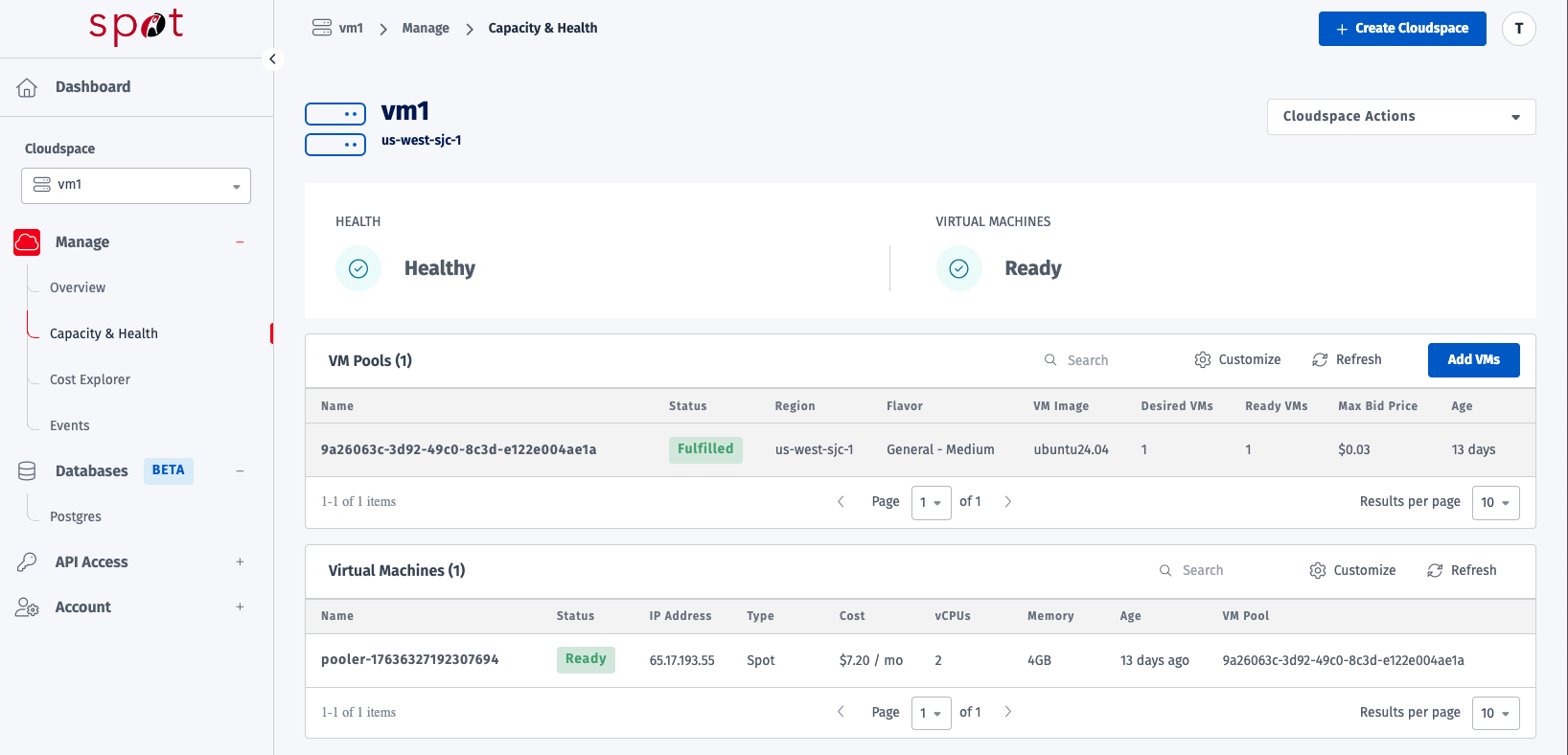
Navigate to Capacity & Health for detailed views:
VM Pools Tab
Pool name and configuration
Bid status and pricing
Won vs desired count
VMs Tab
Individual VM status
IP addresses
Server class details
Scaling VM Pools
Scale Up VMs
Click Cloudspace Actions → Edit
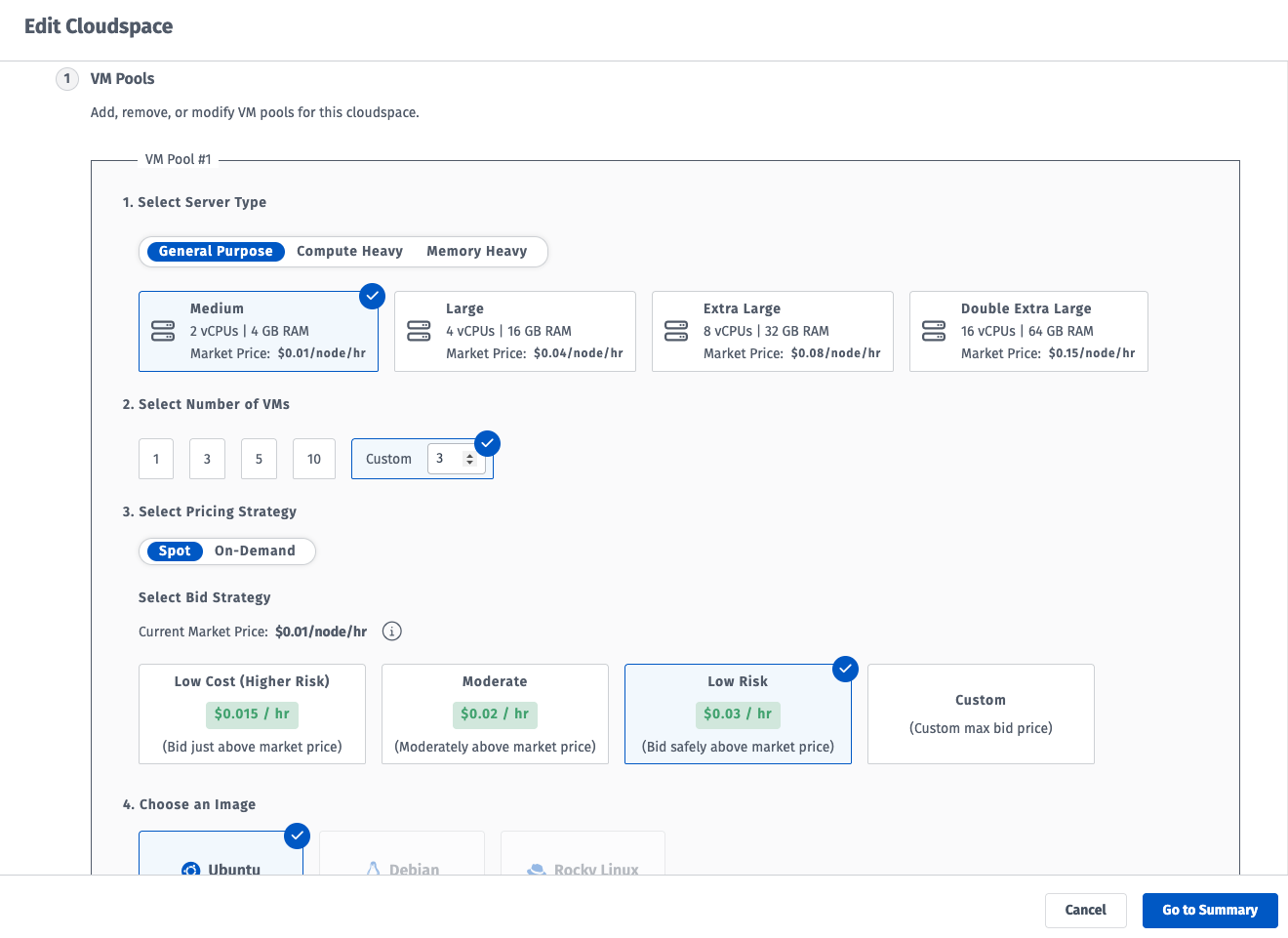
Increase the Desired count in Step 2.
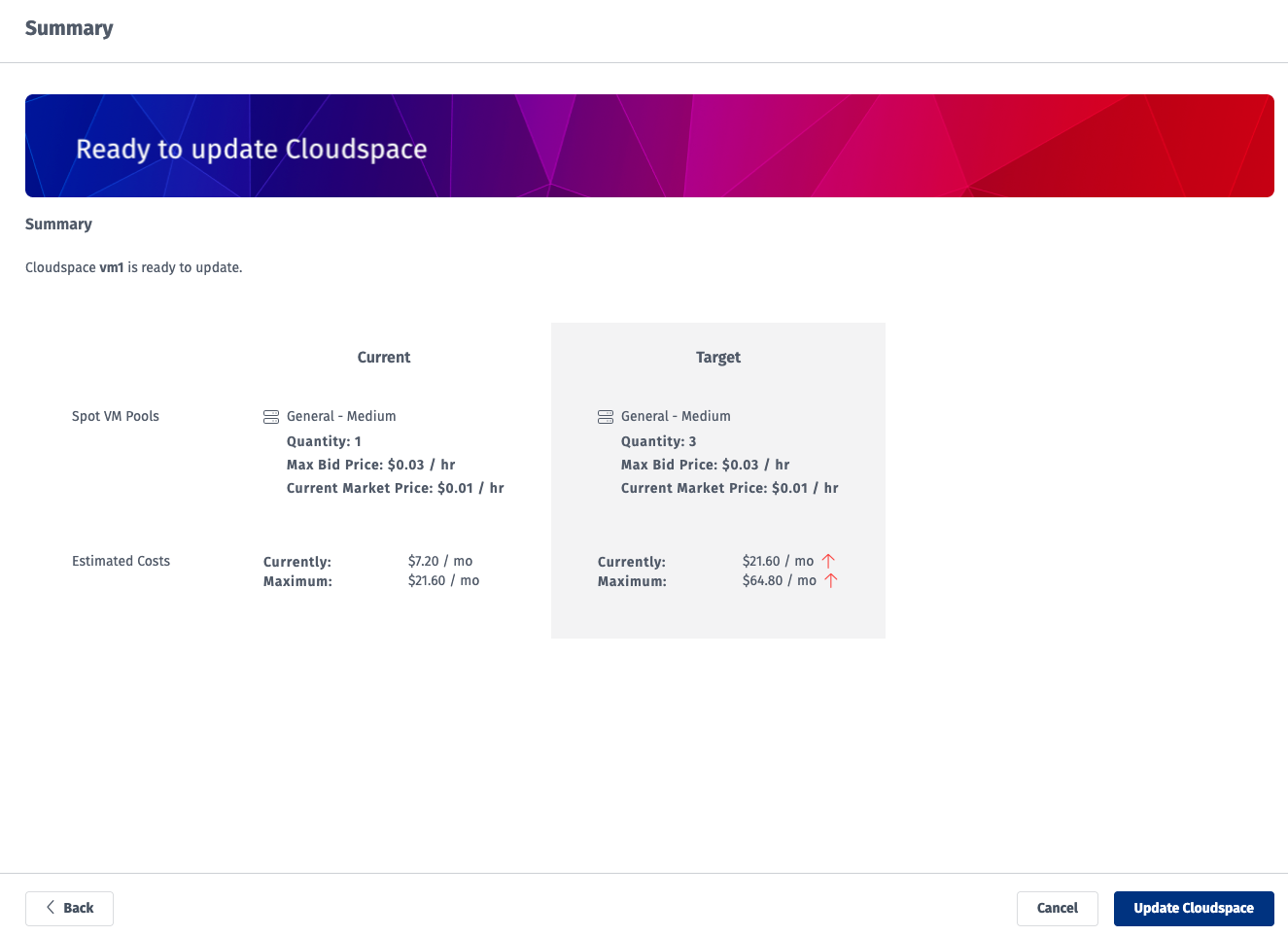
Click Go to Summary → Update Cloudspace
Scale Down VMs
Click Cloudspace Actions → Edit
Reduce the Desired count in Step 2.
Click Go to Summary → Update Cloudspace
Reducing count will terminate VMs. Back up any data first.
Adding a New VM Pool
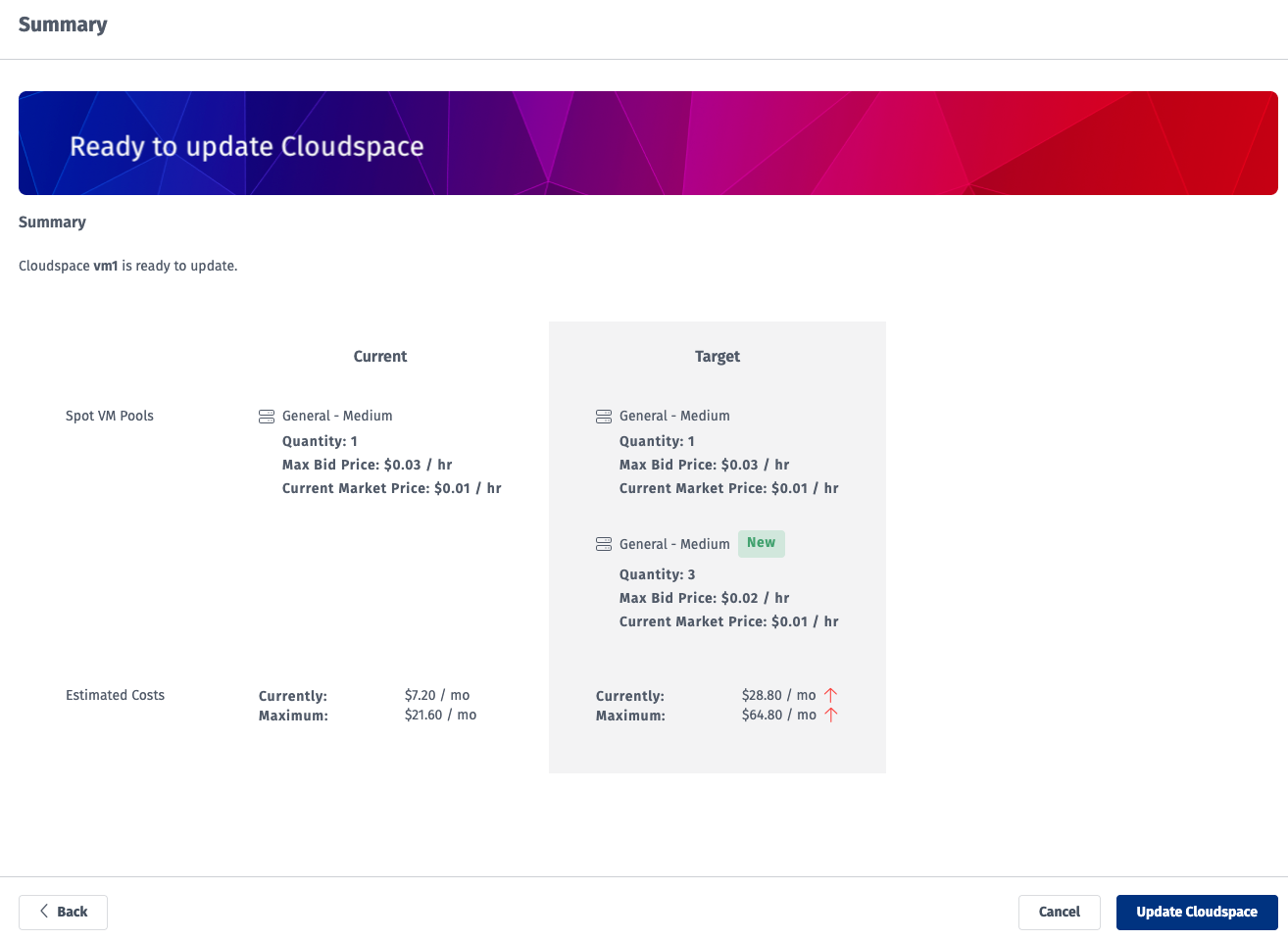
Add pools with different configurations (e.g., different server classes or OS images).
Click Cloudspace Actions → Edit
Click Add VM Pool
Configure the new pool:
Server Type
Number of VMs
Bid Pricing Strategy
OS Image
Click Go to Summary → Update Cloudspace
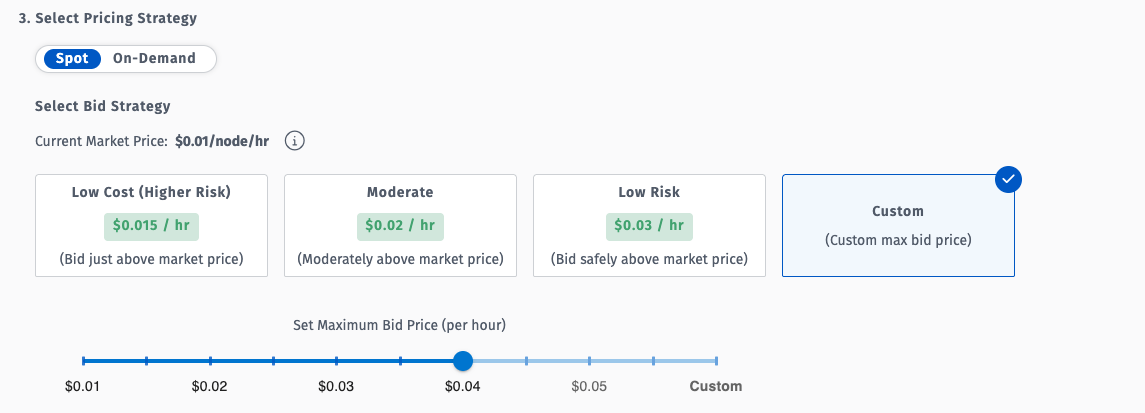
Adjusting Bid Prices
If your VMs are being preempted due to low bids:
Click Cloudspace Actions → Edit
Increase the Bid Price for the affected VM pool
Click Go to Summary → Update Cloudspace
Deleting Resources
Delete a VM Pool
Click Cloudspace Actions → Edit
Click the Trash icon on top right of the VM pool to be removed
Confirm deletion on summary page
Click Save Changes
Delete a VM Cloudspace
Click Cloudspace Actions → Delete Cloudspace
Type the cloudspace name to confirm
Click Delete
Deleting a VM cloudspace terminates all running VMs and is irreversible.
Best Practices
High Availability
Strategy | Implementation |
|---|---|
Multiple pools | Spread across server classes |
Higher bids | Reduce preemption risk |
Webhooks | Monitor and react to changes |
Cost Optimization
Strategy | Implementation |
|---|---|
Right-size VMs | Choose appropriate server class |
Monitor bids | Adjust based on market |
Scale down | Reduce count during off-hours |
Data Safety
Strategy | Implementation |
|---|---|
External storage | Don't rely on VM local storage |
Regular backups | Automate backup processes |
Stateless design | Design for VM replacement |
API & Terraform SOON
For programmatic VM management, use:
Spot Terraform Provider: Infrastructure as code
spotctl CLI: Command-line management
REST API: Direct API access
Troubleshooting
VM Not Accessible
Check:
VM has an IP address assigned
SSH key is correct - Manage SSH Keys
VM status is "Online"
Unexpected Termination
Cause: Market price exceeded your bid.
Fix:
Increase bid price
Enable webhooks for alerts
Design for preemption
Related Documentation
Overview - Introduction to Spot VMs
Manage SSH Keys - Learn how to manage and connect to VMs via SSH